A backup is only useful when it is outside the device it protects and when you know what restoring it will do. Cellar packages the whole collection into one dated file so that moving a cellar does not become a hunt for separate photographs and notes.
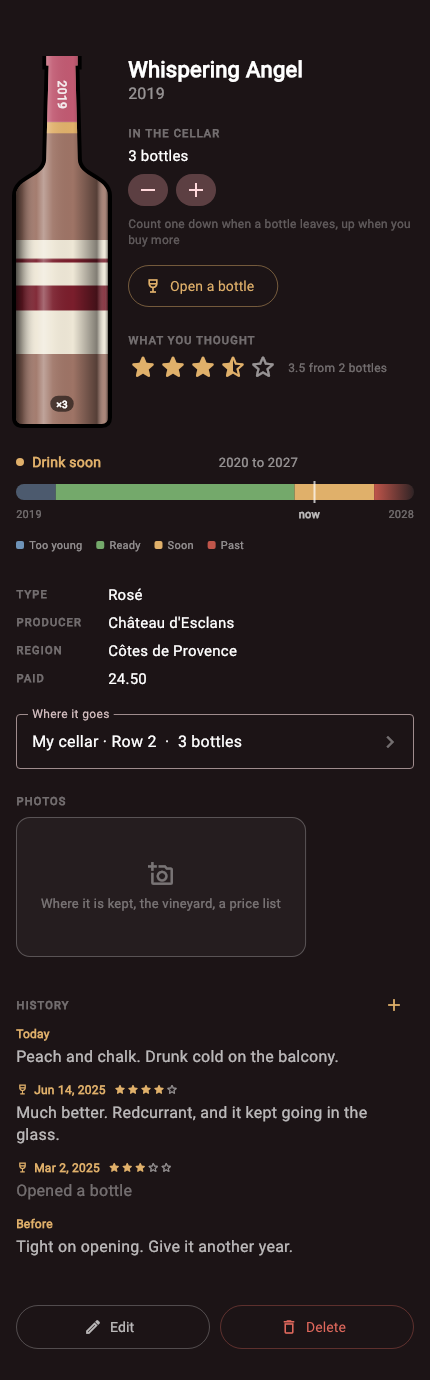
Export the complete cellar from Settings
Open Settings and choose Export. Cellar creates a compressed file with a date in its name. It includes wines, quantities, rack and row locations, notes, ratings and photographs.
The iPhone share sheet then asks where the copy should go. Saving it is a separate action from creating it, so finish by choosing a destination you control.
Put the copy somewhere else
A backup left only in a temporary folder on the same phone does not protect against loss or hardware failure. Save it to iCloud Drive, another file provider, AirDrop it to a Mac, or use another trusted destination in the share sheet.
Keep the dated filename. Several generations are useful if you discover later that an older mistake was already present in the newest file.
Back up at moments of change
Export after the first full inventory, after a large delivery, after reorganizing racks and before replacing the device. A regular monthly copy is reasonable for an active collection. A quiet twelve-bottle rack may need one only after changes.
The right interval depends on how much work you would dislike repeating.
Understand that import replaces the current cellar
Restoring is not a merge. The imported file becomes the cellar on that device. This avoids doubling every bottle, but it also means the existing inventory is replaced.
If the receiving iPhone already contains wine you need, export it before importing. You then have a way back if the wrong file was chosen.
Verify the restored collection
After import, check the total bottle count, open a few label photographs and inspect more than one rack. Confirm that recent notes and the newest delivery are present. Keep the old device or old file untouched until those checks pass.
Do not unzip or edit the backup for routine use. Treat it as a sealed copy made for Cellar to read.